
How to Share a Wishlist Privately and Control Who Can Edit

What if a wishlist invitation gets forwarded? Knowing how to share a wishlist securely starts with choosing who can access the list and how you share it. A product-link list is easy to pass around, but anyone with its URL may be able to add or remove items. For a private wishlist, invite collaborators directly and use email verification to help prevent a forwarded invitation from granting access on its own.
It’s sensible to make it easy for family and friends to join in without giving editing access to everyone who sees a link. Guests can claim gifts through a secure link or QR code, without downloading an app or creating an account. Claiming a gift is different from editing a wishlist, so keep those permissions clear.
This guide explains how product links work, when to use private invitations, and what happens if an invitation is forwarded. You’ll also learn how to manage editing access, including removing someone’s permission when plans change. Less back-and-forth, clearer access, and a wishlist that’s easier to organise together.
Table of Contents
Creating and sharing a list of product links
A list of product links is handy when family and friends are in different places. Add a product page link for each gift idea, then generate the list’s URL. Select the generated URL button to copy it to your clipboard, ready to paste into a message or email.
A wishlist can include links to different kinds of gifts, such as a book, kitchen utensil, clothing or board game. Each link should lead to the specific product page, so relatives can see which item you mean instead of guessing from a name or screenshot.
Once generated, the list URL points to the saved list. Later changes update that list, so the same URL shows the current version. If you add a blue jumper or remove a book, you don’t need to send a fresh link just to reflect the change.
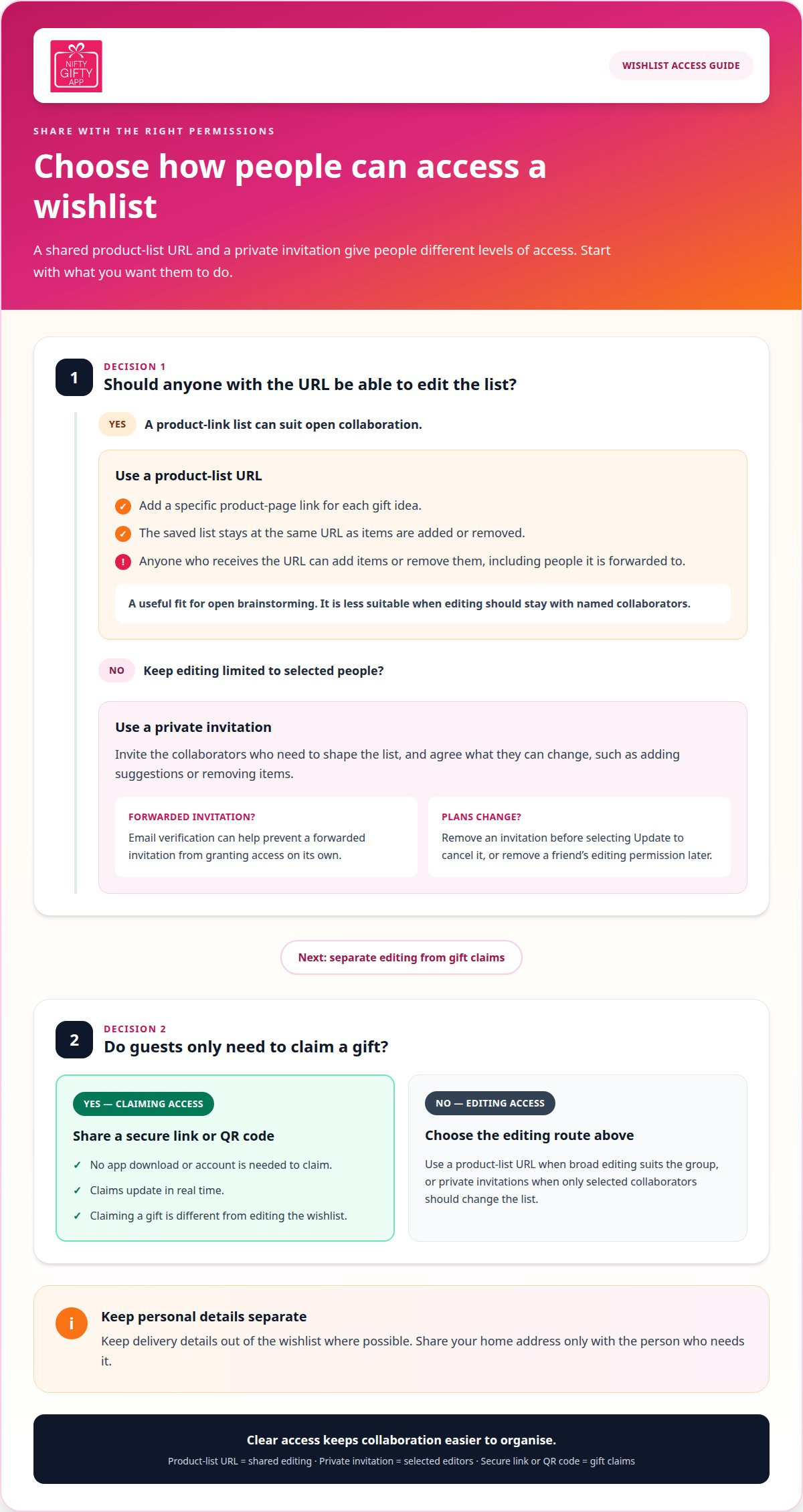
That convenience comes with an important access trade-off. Anyone who receives the shared Links List URL can add items to the list or remove them. It works like a shared document, not a view-only catalogue. If your cousin forwards the message to a group chat, people who receive the URL can also make changes.
Before sharing, decide whether your group needs a collaborative list or a private wishlist with controlled editing. A product-link list suits open brainstorming, such as collecting ideas for a family celebration. It’s less suitable when only selected people should edit, because anyone with the URL can change the list.
Choose clear links: Use the specific product page, such as a particular board game, rather than a retailer’s home page.
Share deliberately: Paste the copied URL into the intended conversation, and remember it can be forwarded.
Keep it current: Update the saved list as ideas change, knowing additions and removals appear through the same URL.
How to share a wishlist securely depends on the access you want. A generated product-list URL is convenient for sharing and editing together, but it doesn’t restrict changes to named people. When editing should stay with invited collaborators, use a private invitation flow instead of treating a shared link as a permission boundary.
Reviewing the suggestions can also give the list a practical role beyond collecting ideas. As an item is considered, it can be removed, so the remaining entries continue to serve as a checklist of what still needs attention. This can make a shared list easier to work through: participants can focus on the items that have not yet been reviewed, then remove each one when it has been dealt with. The list therefore supports both gathering options and tracking progress through them, without needing a separate checklist alongside the product links.
Promoting private wishlist collaboration
Private collaboration works best when the list has a clear purpose and a small group of editors. A parent might invite two relatives to help choose a birthday gift, while everyone else receives viewing or claiming access. Keep suggestions, decisions and gift coordination in one shared place, rather than splitting them across text messages and email threads.
To reduce duplicate purchases while keeping a wishlist private, use one private list for the invited gift buyers and ask everyone to check it before choosing an item. Where the list supports claims, ask people to claim an item before purchasing. Real-time claim updates help others see which gifts have been claimed.
Editing together can help when relatives have different ideas or are shopping from different places. One person can add a book, another can suggest a board game, and the organiser can review both before the occasion. Agree on what editors should change, such as adding suggestions or removing items that no longer fit.
Give the shared list a simple routine. Invite the people who need to contribute ideas, then ask them to review the current items before adding similar options. If someone has already suggested a particular cookbook, for example, another person can add a different title instead of creating a near-duplicate entry.
As gifts are reviewed, remove items so the list works like a checklist. The remaining ideas stay visible, helping the group focus on what still needs attention. Relatives can discuss unreviewed items without sorting through suggestions already considered.
Set the editing boundary: Decide who can add or remove suggestions, and keep the invitation group to those people.
Use one working list: Ask contributors to check the current entries before adding another version of the same idea.
Review as you go: Remove items once the group has considered them, so the list reflects outstanding ideas.
Keep gift claims clear: Where claims are available, have contributors claim an item before purchasing it.
Privacy also depends on what the list contains. Add the product name and a useful description, but keep personal details out of item notes unless collaborators need them. For a specific example, “navy raincoat, size 8” gives useful selection context; a home address or private family detail does not help someone choose that gift.
A shared link and a private invitation serve different purposes. Use a link when broad editing access suits the group. Choose private collaboration when you want a defined set of people shaping the list, then keep gift decisions and updates in that shared space.
Remove list items as they are reviewed to make a shared list work like a checklist. This gives collaborators a simple way to keep ideas organised.
Protection against forwarded invitation emails
Email and social media make wishlist sharing quick, but forwarded messages can reach people outside the intended group. An invitation that requires email verification adds a useful check before an invited guest can access the list.
Private and Invite-Only Access
A private, invite-only wishlist gives access to people invited directly, rather than everyone who receives a general link. To set one up, choose the private or invitation option in the wishlist’s sharing controls, then invite the intended collaborators by email. This suits a family gift list where only selected relatives should see or edit suggestions.
If an invitation is forwarded, email verification can help prevent unauthorised access. Keep the invitation for the person it names, and avoid posting it in a public social media group. This helps keep access aligned with the original guest list.
Privacy and Security Settings
Privacy and security settings determine who can open a wishlist, what they can see, and whether they can edit it. Before sharing, review its visibility, invited email addresses, editing permissions and any address or profile details shown on the list. This helps prevent a private gift idea from revealing information intended for a smaller group.
Can wishlist links expose personal information or account details? A link may reveal the wishlist contents available to its recipients, so keep sensitive details out of item notes. Check what the list displays before sharing, especially if it includes a delivery address or personal account information.
For email, send the invitation to the intended person’s address rather than forwarding it as a shortcut. On social media, use a private message instead of a public post. A copied product link and an invitation may have different access rules, so check which one you’re sharing.
Secure Sharing and Address Privacy Services
Secure sharing and address privacy services let wishlist owners control access while limiting the personal details visible to guests. Which Australian retailers or wishlist services offer secure sharing and address privacy? Compare the actual sharing controls, including invite-only access, email verification and whether a recipient’s address is hidden from guests.
Don’t assume a retailer’s Australian storefront automatically provides private invitations or address protection. Those features depend on the service’s settings, not its country label. If visibility and address controls aren’t clear, keep personal details off the wishlist and share it only with people you trust.
To keep a wishlist private or invite-only, select the private sharing option and invite specific people by email. Before sending, check the recipient list and access settings, then choose email or a private social message rather than a public post. If you change who should edit, review permissions before sending another invitation.
Granting and revoking editing permissions
Editing access should match each person’s role in the gift plan. An organiser may want a sibling to add ideas, while other relatives only need to claim gifts. Treat viewing, claiming and editing as separate actions, and give someone editing permission only when they need to change list details.
If a wishlist link or account is shared with the wrong person, remove their editing permission or cancel their pending invitation, then review who else has access. If account sign-in details were shared, change the password and use available account security controls to end access from other sessions.
Before inviting a collaborator, check the email address carefully. A typo can send an invitation outside the family group. If your cousin is helping choose a gift, invite their own address rather than sharing your sign-in details or asking them to use your account.
Invite the right editor: Match each invitation to the person who needs to add or change wishlist items.
Keep account access personal: Share an invitation, not your login details, when someone needs to collaborate.
Review the list of editors: Remove people whose role has changed, such as a relative who is no longer coordinating the gift.
Separate access from gift decisions: Someone can help edit ideas without taking responsibility for every purchase.
Plans change. A friend may stop coordinating, or an invitation may go to the wrong address. The wishlist owner can remove a friend’s editing permission at any time, updating access without rebuilding the list or asking everyone to start again.
For an invitation that hasn’t been accepted, remove the invite before selecting Update to cancel it. The order matters: removing the invite alone isn’t the final cancellation step. For example, if a former housemate received an invitation by mistake, remove their address from the invite list, then select Update.
For someone who already has editing permission, remove their access in the wishlist’s sharing controls, then review the remaining editor list. If the person was also sent a general product-list URL, remember that removing invitation access may not change permissions on that separate shared list.
Once access is corrected, send a fresh invitation only to the intended collaborator. If an email was forwarded, verification can help protect access by ensuring an unauthorised recipient needs to complete that step. A quick review of invitees and editors keeps the list aligned with the people organising the gift.
How do you hide your home address when sharing a wishlist?
A wishlist and a delivery address serve different purposes. Keep your street address out of the list itself, including item notes, profile fields and screenshots. A relative can still use a product name, colour or size to choose a gift without seeing where you live.
Start by opening the list’s sharing and profile settings. Look for fields showing your name, contact details or delivery information, then remove anything collaborators don’t need. Don’t assume a private link hides an address displayed to invitees. Choose a sharing method that lets you control who can view the list and its personal details.
Gift delivery needs a destination, but not every wishlist viewer needs your address. Arrange delivery details directly with the person sending the gift, using a private conversation. For example, send your sister the address she needs for one parcel rather than adding it to a family-wide wishlist.
Before posting a wishlist in a family group chat, check what appears when you open it as a recipient. Review the page, account profile and any notes attached to products. A screenshot can expose details outside the list, such as a browser tab, account name or notification, so crop it carefully or share the list itself.
Keep address details off the list: Don’t add your street address to a product description or gift note.
Review your profile: Remove delivery or contact details that collaborators don’t need to choose an item.
Share with the right people: Use private invitations rather than a public social media post.
Send delivery details separately: Give the address directly to the person arranging a parcel.
Check the shared view: Open the list as a guest and review visible details before sharing more widely.
For families in different places, separate the gift decision from the delivery arrangement. A relative can help choose a present from the wishlist, while the person sending it receives the delivery address privately. If several people are coordinating, agree who is handling delivery to keep your address out of shared notes.
If the list already includes your home address, remove it before sharing again. Then review any copies you’ve sent, such as a screenshot or pasted note, and send an updated version without the address. A private wishlist controls who sees the list; careful handling of delivery details controls who knows where a parcel should go.
Nifty Gifty App
Nifty Gifty App helps organisers coordinate gifts for family occasions, including when relatives live in different places. Organisers use the mobile app on iOS or Android to keep occasion details and gift plans together.
Guests can claim gifts through a secure link or QR code, without downloading an app or creating an account. Claims update in real time, helping the organiser and group see what’s been claimed. For a group gift, the app tracks contributions with a live running total, while contributors arrange payments separately.
Use it when you want gift coordination alongside your wishlist sharing plan, with clear roles for organisers, guests and recipients. For help with gift coordination, contact Nifty Gifty App.
Make your next occasion easier to organise
Set a simple sharing plan before the next occasion: decide who should be involved and what information belongs in the list. That small pause can make gifting feel more thoughtful for everyone, especially when family members are coordinating from different places.
Learning how to share a wishlist securely is part of creating a calmer way to organise together. Keep the process centred on the people celebrating, not another long chain of messages. A clear plan lets relatives contribute while helping you stay in control of the details.
If you’d like help keeping gifting organised across occasions, contact Nifty Gifty App. Choose a sharing approach that suits your family, then enjoy more time focused on the celebration.
Frequently Asked Questions
How do you share a wishlist privately and securely?
Choose a sharing method that limits access to the people you intend to include, then keep personal details off the list. The practical answer to how to share a wishlist securely is to match the link’s permissions to its audience. For a birthday list, send the invitation directly to the relatives helping coordinate, and avoid placing it in a public post or open group.
Which wishlist apps let you control who can view or edit a list?
Look for an app that clearly separates list visibility from editing access, since these controls vary. Nifty Gifty App lets organisers create gift lists and share a secure link or QR code so guests can claim gifts. A guest claim link serves a different purpose from an editor permission, so keep those roles distinct when deciding how your group will coordinate suggestions.
How can you share a wishlist with selected people without making it public?
Use a private invitation or send the list through a direct message to each intended recipient. For example, share a family celebration list with the relatives coordinating presents rather than adding it to a public social media profile. Check the message’s audience before sending, especially in group chats where other members can forward the link beyond the original group.
Are wishlist links safe to send by email, text, or social media?
Email and text are useful for sending a list directly, while a public social post can expose it to a wider audience. Before sharing, check who can open the link, preview the page, remove private notes, and avoid including account passwords or delivery details in the message.



Comments