
Shareable Wishlist Apps Compared by Free and Paid Features

A gift list shouldn’t stop at one shop. A shareable wishlist app can bring items from different stores together if it accepts product links or custom entries. Check whether people can view, edit or reserve items, and whether the list shows those actions without revealing a surprise.
Choosing one for a family or friend group takes more than a tidy list. You need to know who can see it, whether another person can add suggestions, which features sit behind a paid plan, and how the group can coordinate a shared gift. This comparison lays out those practical differences across wishlist options, including mixed-store support, privacy, shared editing and group gifting. It also explains where a simple list works, where a dedicated claim feature matters, and what to weigh before choosing an app for the next occasion. For surprise gifting, the recipient’s view matters too: a list that works for givers may reveal more than intended.
Table of Contents
Can I make my wishlist private?
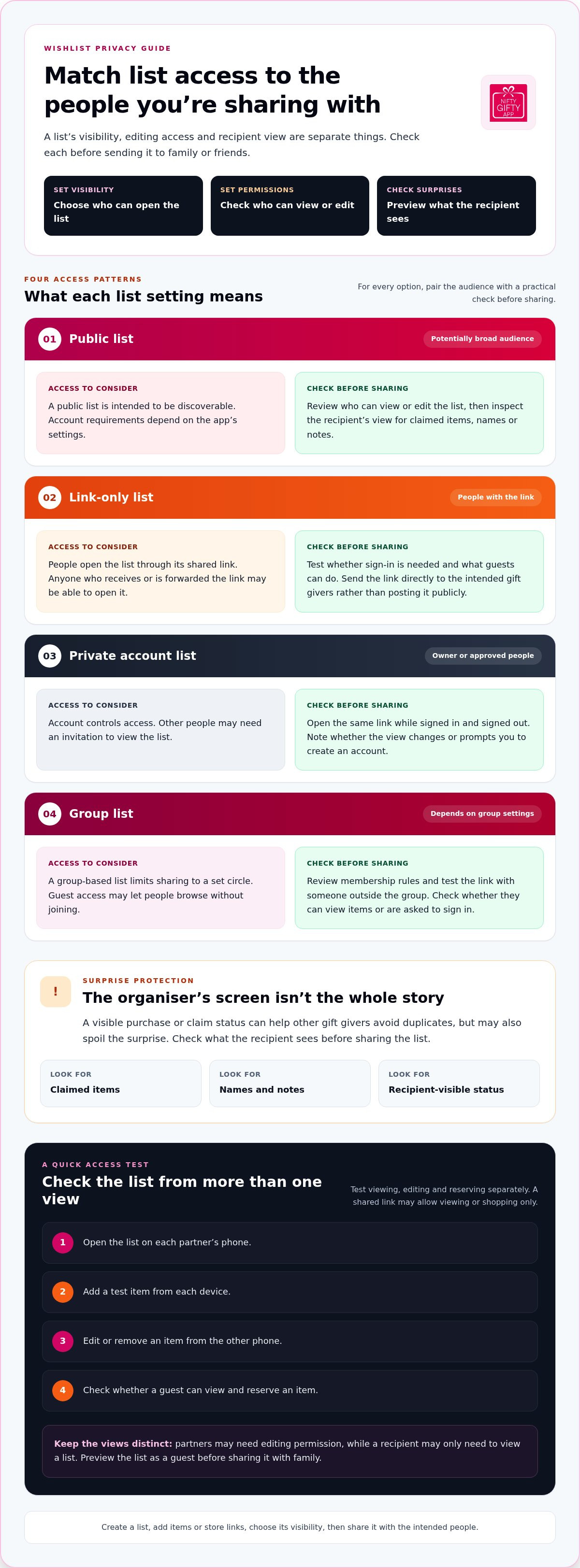
Yes. Privacy depends on who can open a list, whether they need an account and what they can do once they’re in. Create a wishlist, add items or store links, choose its visibility, then share the link with the intended people.
Account and privacy controls
Compare account requirements with privacy settings. A private list may be stored in an account, while a shared link can give selected people access without making the list public. These are separate controls. Before sharing a birthday list, check who can view or edit it and whether access requires an account or group membership.
For a family list, open the same link while signed in and signed out. Note whether the view changes or prompts you to create an account. This quick test shows how list visibility differs from account access.
Group privacy and guest shopping
A group-based wishlist limits sharing to a set circle, while guest access may let people browse without joining. Check whether someone outside the group can open the list, whether they need an account and what they can do there. Guest access can make shopping easier for relatives; group access may suit a smaller audience.
Send a test link to a relative who isn’t in the group. Check whether they can view the items and whether they’re asked to sign in.
Public and link-only lists
A public list is intended to be discoverable, while a link-only list is opened through its shared link. Link-only access limits how people find the list, but anyone who receives or is forwarded the link may be able to open it. Keep private planning lists separate and use different links for different audiences.
For a birthday, send the link directly to invited gift givers instead of posting it publicly. Keep a separate private list for ideas you aren’t ready to share.
Purchaser privacy and surprise protection
Purchasers can buy wishlist items without revealing themselves only if the app’s claim or reservation process hides that information from the recipient. A visible purchase status can help other gift givers avoid duplicates, but may also spoil the surprise. Before sharing, check what the recipient sees, not just the organiser’s screen.
Ask a friend who isn’t organising to open the list as the recipient would. Check whether claimed items, names or notes appear.
For link-based collaboration, check whether invitees can only view items or can also add and edit them. Choose access rules that suit your audience, especially if private planning and gift shopping require different levels of visibility.
Does sharing a wishlist give both partners editing access?
Not automatically. A shared link may allow viewing or shopping only. Test adding, editing and reserving separately on both partners’ phones.
Editing on both partners’ phones
Open the wishlist on each phone and test the same actions. Have one partner add a suggestion, then ask the other to edit its details. Check whether changes appear on both screens and who controls the final request. This shows whether sharing means co-editing or just viewing the list.
If the app uses accounts, try the test with separate accounts, then close and reopen the list on each phone. A change visible only to its author may not be shared editing. Also check whether both partners can remove an item or mark it as reserved, since these actions affect what gift givers see.
Recipient access and accounts
Separate partner access from recipient access. Partners may need editing permission, while a recipient may only need to view a registry. Check whether a shared link requires an account and whether creating one changes what the recipient can see. For example, preview the list as a guest before sending it to family.
For MyRegistry, distinguish an invitation to view from permission to edit. Open the registry on both partners’ phones and try adding an item from each. This reveals any limits on editor access before either person relies on the list. Also check who controls changes and sharing.
Free access across devices is a separate question. A list may open on both phones without giving both people editing rights. Test with the same account and separate accounts, then compare what each person can do. Check for restrictions on adding items, changing details or reserving gifts. Access on two devices doesn’t necessarily mean every feature works on both.
Use this quick test before sharing the registry:
Open the list on each partner’s phone.
Add one test item from each device.
Edit or remove an item from the other phone.
Check whether a guest can view and reserve an item.
For a couple planning across different stores, this test shows whether both people can build the list together or one must manage edits. Keep the recipient’s view separate from the partners’ editing view, especially when a gift should remain a surprise.
Comparing wishlist app features
The right choice depends on how your group shares, edits and reserves gifts. This is a feature comparison, not a hands-on performance test of every app.
There isn’t one option that suits every Australian household. Compare the features you’ll use, such as mixed-store links, shared editing, privacy controls and gift reservations. A couple planning across different stores may need flexible item links, while a family group may care more about claims that help prevent duplicate purchases.
Before choosing a wishlist app, make a short test list. Add an item from a second store, attach a screenshot, then include useful details such as size, colour, price or deadline. Open the shared view as a guest and check that the information is clear on a phone, where relatives may browse.
Check group gifting separately. A claim or reserve feature can show that someone has selected an item, helping the group avoid duplicate purchases. A spreadsheet can record a name beside an item, but it won’t automatically hide the claim from the recipient. If the gift is a surprise, test what the recipient can see.
Compare editing, too. Ask someone else to add a suggestion, then change its details from their device. Confirm which list view shows the update. This simple test distinguishes a shared list from a link that only lets people browse or shop.
Choose an app by matching its features to the task. Mixed-store planning needs flexible links, while group gifting benefits from clear claim and reservation controls. Treat the app’s settings as part of the comparison, not an afterthought.
Free plans and paid features
A free tier may cover a simple birthday list, while paid features can matter for shared planning. Compare what each plan actually includes, not just its label. Check item limits, sharing controls, editing permissions and gift reservations before choosing a plan for an occasion.
Plan details differ between apps, so test the features your household will use. Create a sample list with items from two stores, share it with someone else, then try editing it from a second phone. Check whether those actions remain available without upgrading.
Read each plan’s feature list alongside your test. A feature may appear in the app but require a paid plan. Note whether limits apply to creating lists, adding items, inviting collaborators or reserving gifts. These details matter more than a long feature list if your group only needs a short, shared list.
Separate organiser tools from guest access. Relatives who only need to view a link or reserve a gift may not need the same features as the person maintaining the list. Test the guest experience on a phone, then compare it with the organiser’s editing options. This shows whether a paid feature affects the organiser, the guest or both.
Before paying, list the features that solve your gifting task: mixed-store links, shared editing, privacy settings or claims. Compare them with each app’s plan details. If a paid tool only adds features your family won’t use, it may not change how you organise the next occasion.
Friend group gift planning
Friend groups often want to celebrate together without making one person the permanent gift coordinator. A shared plan can help with a birthday, housewarming or farewell, especially when friends live in different cities. Start by agreeing on the recipient, the occasion and whether the group wants one shared present or separate ideas.
For a birthday, ask the recipient to add a few ideas before planning begins. Friends can divide the organising: one person keeps the list current, another checks preferences and someone else coordinates the group conversation. Clear roles help prevent repeated questions and separate plans.
Make each suggestion easy to act on. Add the item name, a useful product link and details such as size, colour or preferred version. If the group is considering one shared present, describe it clearly and agree how friends will discuss contributions. A coordinator can then keep the plan moving without chasing everyone through separate conversations.
Agree on the recipient and occasion.
Choose who will maintain the gift ideas.
Add practical details beside each suggestion.
Decide how the group will discuss a shared present.
Surprises need extra thought. Keep planning notes among the gift givers and avoid adding details the recipient might see. Before sharing a list, ask someone outside the organising pair to preview the recipient’s view. This provides a fresh check for visible notes or selections.
For friends who can’t meet in person, a shared list gives everyone a common reference point. It helps the group consider different preferences without relying on one person to remember every suggestion. Keep the list focused on the current occasion and move unrelated ideas elsewhere, so gift givers can find relevant options quickly.
If the group is planning one present, agree on who will make the final choice and how others can contribute. Keep that decision separate from the recipient-facing list. For separate gifts, friends can choose independently while coordinating their ideas in one place. Choose the arrangement that suits the group.
Before sharing, make sure the list reflects the group’s plan and the recipient’s preferences. A clear organiser, useful item details and a private place for group decisions help friends celebrate together while keeping the focus on the person being celebrated.
Nifty Gifty App
Nifty Gifty App helps organisers coordinate gifts and group contributions for an occasion. Organisers use the mobile app on iOS or Android, while guests claim gifts through a secure link or QR code without downloading the app or creating an account. Claims update in real time.
For group gifts, contributors can chip in, and the app tracks contributions with a live running total. It doesn’t collect or process payments. Recipients receive gifts; they don’t claim them. Nifty Gifty App helps organise gifting, but it isn’t a store-linked registry and doesn’t sell gifts or gift cards.
If that approach fits your group, visit niftygiftyapp.com to explore Nifty Gifty App.
Make the next occasion easier to organise
A gifting plan works best when it fits how your group makes decisions. Before the next occasion, agree on who will coordinate the list, how gift givers will stay in step and what should remain a surprise. A clear plan can make everyone’s part simpler.
Choosing a shareable wishlist app is less about collecting every possible feature and more about finding the right fit for your group. Think about where coordination tends to stall: gathering ideas, helping people decide together or tracking a shared gift. Let that answer guide your choice.
Make the next step small. Pick an organiser, set up the occasion and invite the people who’ll take part. A thoughtful plan leaves more room for the fun part: choosing something the recipient will love.
Ready to organise your next occasion with Nifty Gifty App? Explore Nifty Gifty App and make gifting feel more considered from the start.
Frequently Asked Questions
Can I create one wishlist with items from different stores?
Yes, if the list accepts product links or custom entries from different retailers. For example, combine a book from one shop with kitchenware from another. Add the product name and useful details beside each link, so relatives can identify the right item if a retailer changes its page. Store-linked registries may focus on one retailer’s catalogue, so check how they handle items from elsewhere.
Can my friends see what I claim?
That depends on the app’s claim settings and the list’s audience. Some tools show a claimed or reserved status to gift givers, while the recipient may see something different. Before claiming a present, preview the recipient’s view or ask another group member to check it. This shows whether your selection stays a surprise or appears on the shared list.
How can I organise gift giving for a large or extended family?
Choose one organiser to coordinate the occasion, then group ideas by recipient so relatives can quickly find relevant gifts. If family members live in different places, add clear descriptions and preferences, such as a preferred colour or size. Agree how gift givers will mark selected items and where questions should go. A short shared plan clarifies everyone’s role without repeated messages.
How can families avoid duplicate gifts without spoiling the surprise?
Use a claim or reservation feature that shows gift givers which items are taken, then preview what the recipient can see. For example, one relative can reserve a board game while others see it’s covered. If the recipient can see the claim, coordinate selections privately among gift givers instead. Check the recipient’s view before sharing a surprise list.
How do I make a birthday wish list?
Start with ideas the birthday person would genuinely enjoy, then add each item’s name, product link and useful preferences. Include the size for clothing or the preferred colour for homewares. Decide who should see the list and share it with those gift givers. For surprise presents, make sure the birthday person can’t see claims or organiser notes.
How do these apps compare for sharing with friends?
Compare how each option handles guest access, shared editing, item details and gift reservations. Friends coordinating from different households may value easy access, while a smaller group may prioritise keeping selections private. Test a sample list on a phone and ask a friend to open it. The useful choice is the one that supports your group’s actual tasks, not one with features you won’t use.
Which wishlist apps let users share lists with friends and family?
Options include general wishlist apps, multi-store registries and shared documents. MyRegistry is one registry option to compare, while a spreadsheet may suit a group comfortable managing access and updates itself. Nifty Gifty App is another option for organising gift giving. Compare how each handles sharing ideas, tracking selected gifts and keeping surprise plans private.
Can you create and share wishlists for products from any online store?
Some wishlist tools accept links or custom entries from different stores, but support varies. Try adding a product from a retailer your family uses, then check how its name and details appear to others. If the link doesn’t display clearly, add the product name and relevant information manually. This helps relatives identify the intended item when browsing the list.



Comments